
Configure: Budget Code Mapping Profiles
A mapping profile tells the connector which Procore budget code to use for each Tyler Munis purchase order line, and which Munis departments to import from. Mapping profiles are created and edited by a connector administrator in Velosimo Connect Admin. The Procore app only selects a profile — it cannot edit mappings.
Open the mapping settings
- Sign in to Velosimo Connect Admin.
- In the left menu, go to Integrations → Tyler Munis → Procore.
- The Settings tab lists the mapping profiles for the Procore import app, with the number of mapping rows and departments in each.
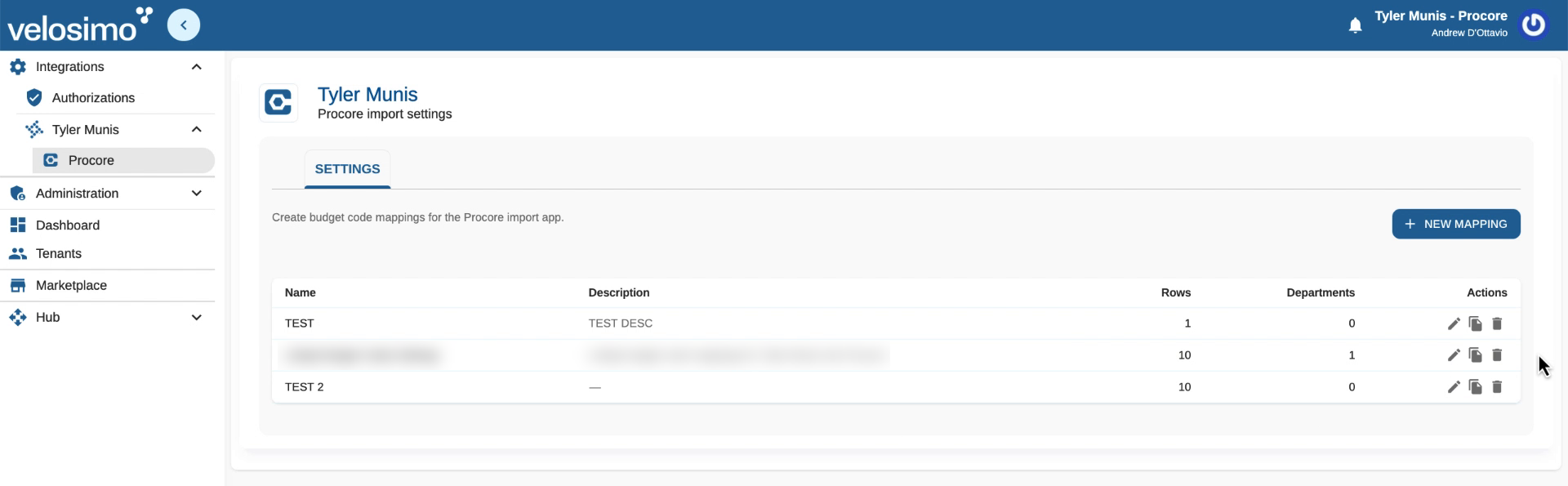
Tyler Munis – Procore import settings in Velosimo Connect Admin
From this list you can:
- Click + New Mapping to create a profile.
- Use the Actions icons to edit, copy, or delete an existing profile.
Create or edit a mapping profile
- Click + New Mapping, or the edit (pencil) icon on an existing profile.
- Enter a Name and Description for the profile. The name and description appear in the Procore app's profile picker, so make them easy to recognize (for example, the agency or project type).
- Under Budget code mappings, add one row per combination of Munis segments:
| Field | What to enter |
|---|---|
| Munis Stage (seg 2) | The project stage segment from the Munis account string (for example, PLANNING, DESIGN, CONSTRUCTI) |
| Munis Expense (seg 3) | The expense segment from the Munis account string (for example, ENGINEER, LEGAL, CONTRACTOR) |
| Procore budget code | The Procore budget code that lines with that Stage + Expense combination should post to (for example, 004-001.PSA) |
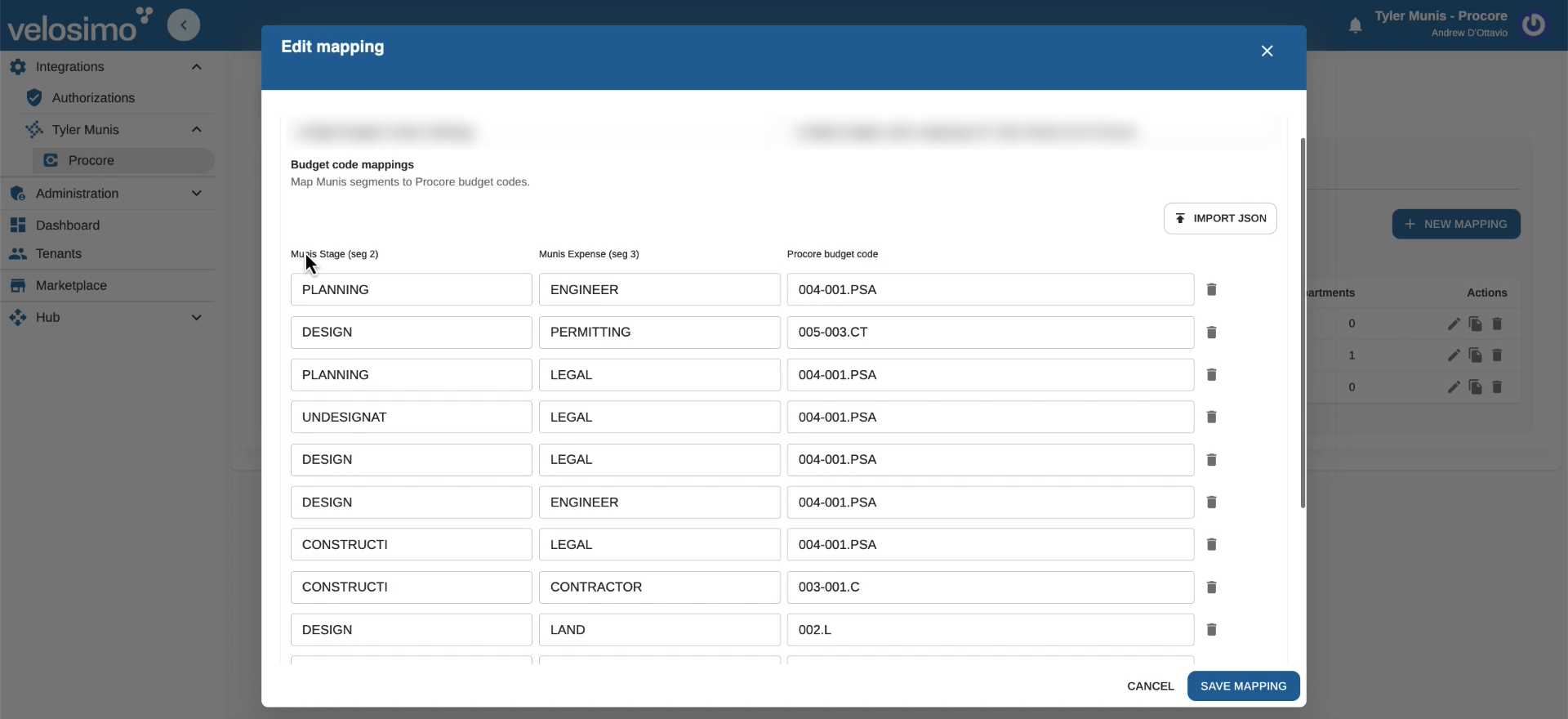
Budget code mapping rows: Munis Stage + Munis Expense → Procore budget code
- Click + Add Mapping to add more rows, or use the trash icon to remove a row. Several Munis combinations can map to the same Procore budget code.
- To load many rows at once, click Import JSON and upload a mapping file.
Set department codes
Under Department codes, select the Munis department(s) whose purchase orders should be imported, for example 205 — CAPITAL WORKS. Click + Add Department Code to include more than one.
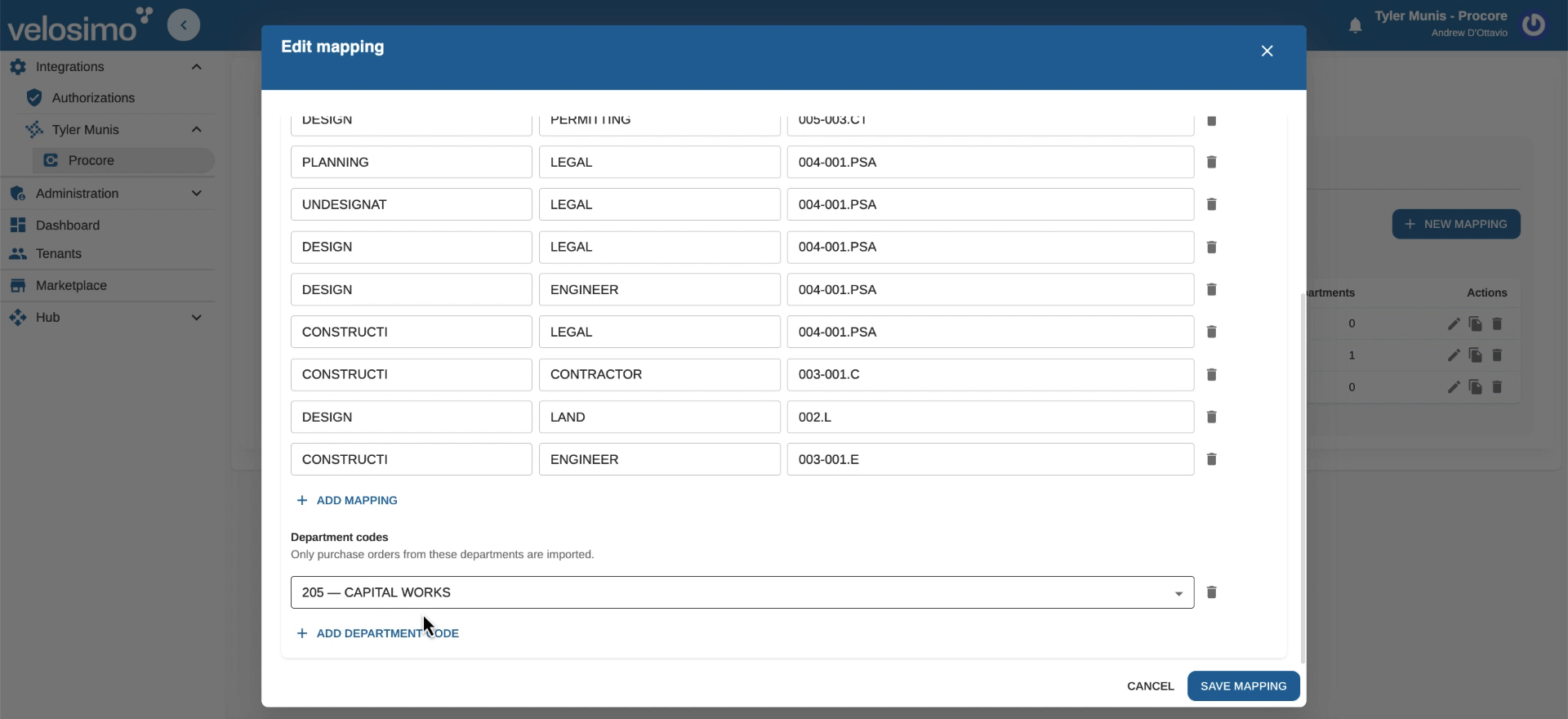
Department codes filter which Munis purchase orders are imported
Click Save Mapping when you're done.
Tips
- Budget codes in the profile should use the same format as the Procore project's budget codes (cost code + cost type, for example
003-001.C). - You don't need to create missing budget codes in Procore by hand. During project setup, the app compares the profile to the Procore project and offers to add any codes that are missing. See Configure: Procore Project Setup.
- If your Procore project template already creates these budget codes, there will be nothing to add during setup.
Updated 20 days ago